How to Use AI Jewelry Photography with Wix
Last updated: March 31, 2026
Why Wix Sellers Need AI Photography
Wix is one of the most competitive platforms for jewelry sellers. High-quality product images are the #1 factor in purchase decisions. JewelryAI helps Wix sellers stand out with professional on-model photography at a fraction of traditional costs.
Step-by-Step Setup Guide
- Create your JewelryAI account. 2. Photo your jewelry products with a smartphone. 3. Upload to JewelryAI and select templates. 4. Download finished images. 5. Upload to your Wix product listings. The entire workflow takes under 10 minutes per product.
Best Practices
For optimal results on Wix: use lifestyle/on-model shots as your primary image, include detail close-ups as secondary images, maintain consistent styling across your catalog, and optimize image dimensions for Wix's requirements.
Workflow Examples
Example 1: New product launch — generate 5 styled variations per SKU for A/B testing. Example 2: Seasonal refresh — update all listing images with seasonal styling without reshooting. Example 3: Scale operations — photograph 100+ new pieces in a day using AI batch processing.
Industry Context & Market Data
Understanding the broader jewelry photography landscape helps you make informed decisions about your visual strategy.
Consistent product imagery across a catalog can increase average order value by 17%.
AI-generated product photography can reduce time-to-market by 80% compared to traditional studio shoots.
These statistics underscore why investing in professional-quality product imagery — whether through AI or traditional methods — is essential for any jewelry business competing in the modern marketplace. The brands that prioritize visual excellence consistently outperform those relying on amateur photography.
Professional Photography Best Practices
Whether you use AI or a traditional studio, these expert tips will improve the quality of your source images and final output:
- Always shoot in RAW format for maximum post-processing flexibility
- Use a lightbox or tent to eliminate harsh reflections and hot spots
- Feature multiple angles — front, side, top-down, and three-quarter views
- Keep backgrounds clean and neutral; white, grey, or soft gradients work best
- Invest in consistent colour calibration so products look identical across channels
Applying these practices to your source photographs gives AI tools like JewelryAI the best possible material to work with, resulting in even more impressive final images. Remember that the quality of your input directly affects the quality of your output.
Common Mistakes to Avoid
Many jewelry sellers make these preventable photography mistakes that hurt their sales performance:
- Using a cluttered or distracting background that draws attention away from the jewelry
- Relying on a single angle when buyers need to see multiple perspectives to feel confident
- Inconsistent lighting across product listings, which makes your catalog look unprofessional
- Skipping image optimisation, leading to slow page loads that increase bounce rates
- Ignoring platform-specific image requirements that affect search ranking and visibility
- Using low-resolution images that appear blurry when customers zoom in
Each of these mistakes directly impacts your conversion rate. AI photography platforms like JewelryAI help you avoid most of these pitfalls by automating the technical aspects of product photography.
From Our Portfolio
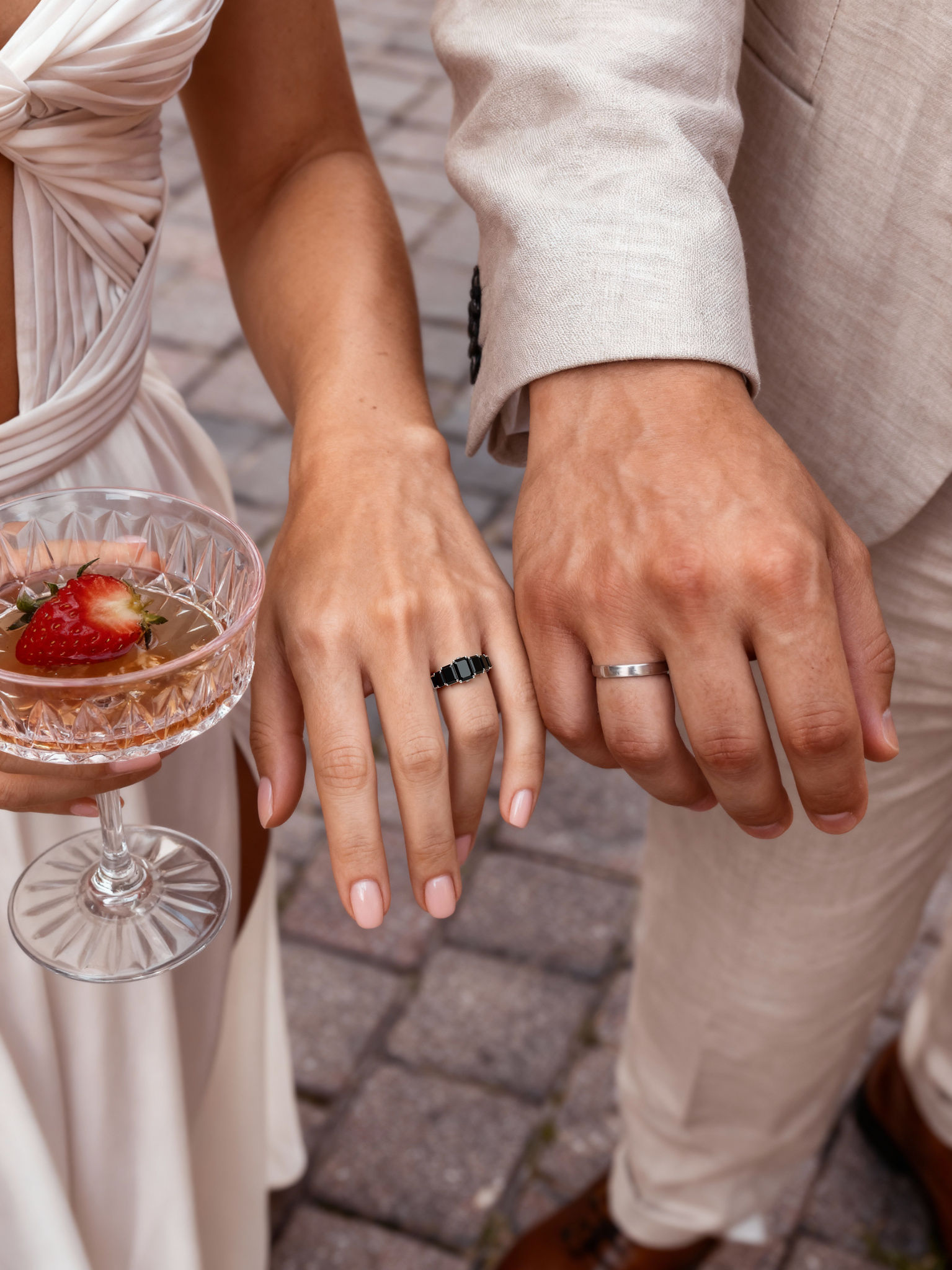
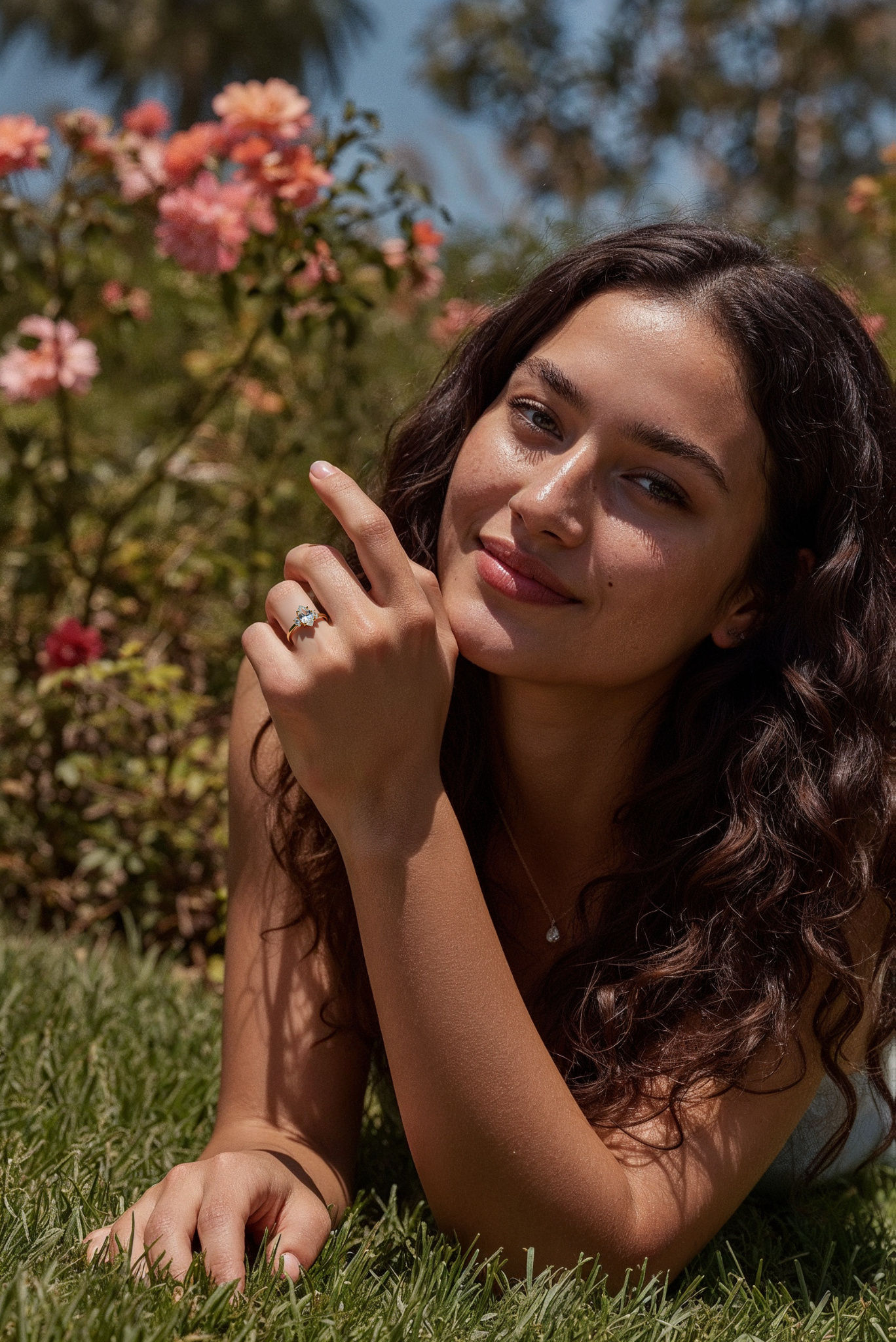

✦ Key Takeaways
- ✓Professional product photography is the #1 driver of online jewelry sales conversions
- ✓AI photography reduces costs by 70-90% while maintaining studio-quality results
- ✓Consistency across your catalog builds trust and increases average order value
- ✓Platform-optimised images improve your listing performance and search ranking
- ✓Batch processing allows you to update your entire catalog in one session
Frequently Asked Questions
Boost your Wix jewelry sales with AI photography. Start your free trial at JewelryAI.
Get Started Free